
Frame your picture first. Go live now starts sending to the platform.
Your first broadcast
Open Sport Stream Studio on your iPhone and allow camera and microphone access. Use the phone in landscape. You can skip the Quick Start Tutorial and reopen it in Settings → Help.
- In Settings, choose the sport, enter the home and away team names and add logos. Check the scoreboard preview.
- Return to the studio and start the camera. Choose a lens, framing and zoom. Starting the camera alone does not publish anything.
- Below the preview, choose YouTube or Facebook. Connect the correct channel or Page and prepare a broadcast.
- Check the title and available visibility settings. Tap Go live now and wait for a confirmed LIVE status.
- Control the score and clock, or invite another operator through Remote. After the match, also end the broadcast on the platform.
Run a short test before the match. We recommend a stable internet connection, a tripod and considering a power bank for longer broadcasts. Watch the phone’s temperature: direct sunlight and charging can increase heat.
Finding your way around
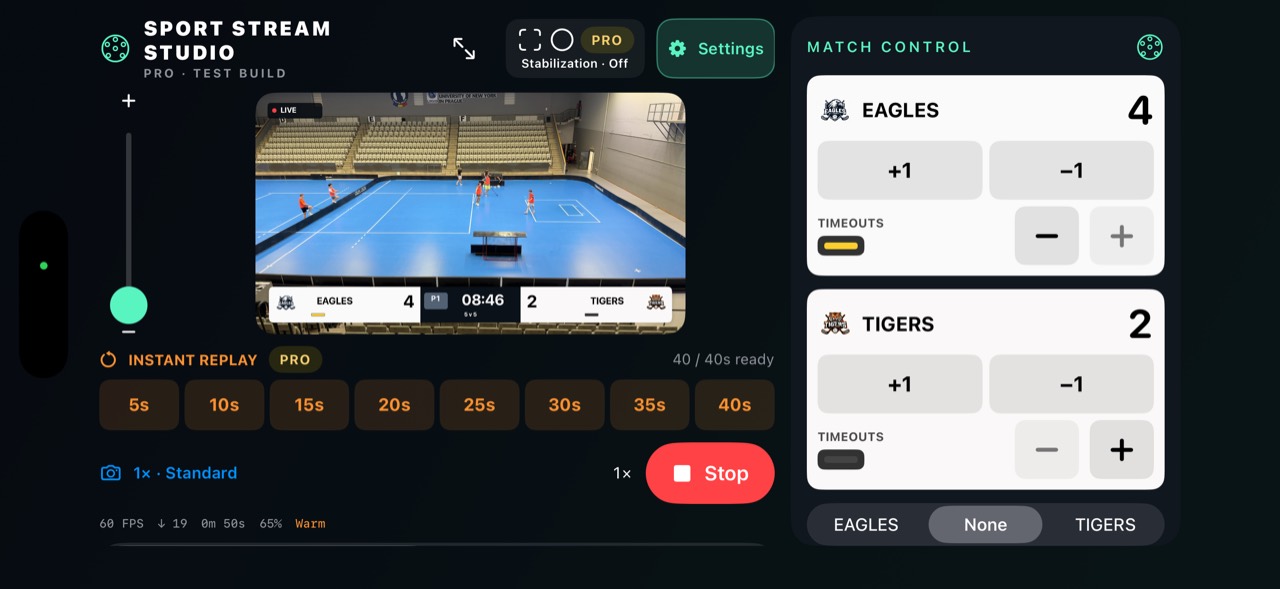
The preview shows the prepared picture. Match Control contains the score, clock and controls for the selected sport. Settings holds appearance, accounts, sponsors, replay and controller pairing.
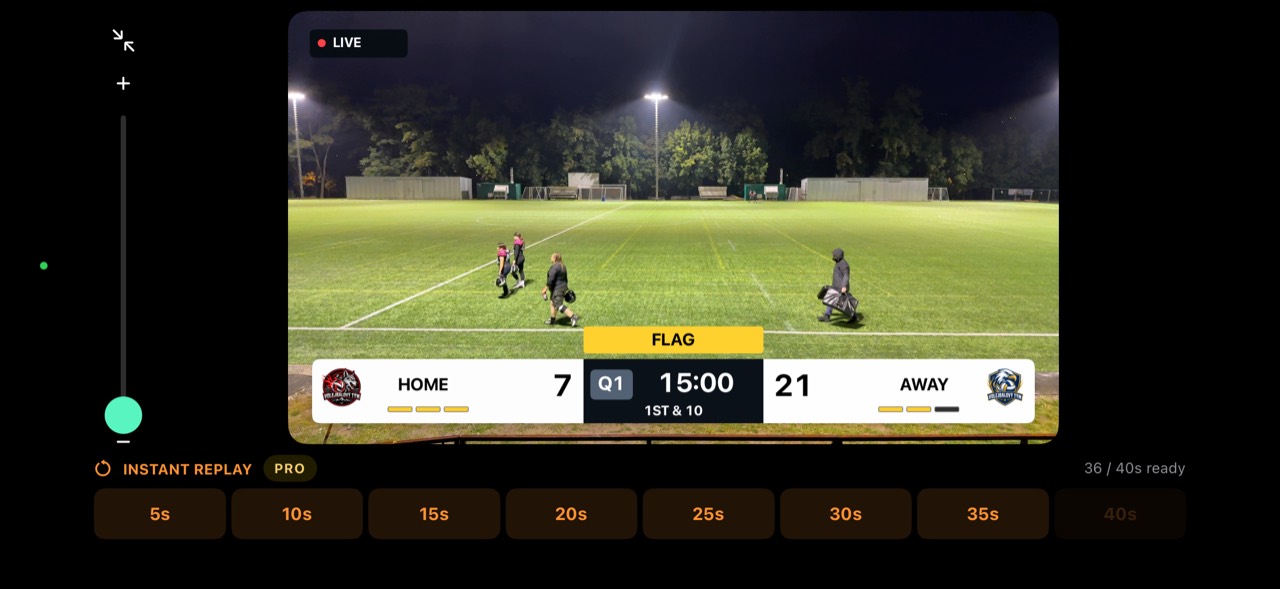
The fullscreen button is near stabilization. It enlarges the preview while keeping zoom and replay available. Use the compact return button to reach Match Control again. The vertical zoom slider on the left zooms in upwards and out downwards.
Statistics: FPS is the frame rate, Drop counts dropped frames, the timer shows camera runtime, and the percentage beside the battery icon is remaining charge. The ↑ and ↓ MB counters show sent and received data tracked by the app, not your carrier’s bill. Temperature status helps identify excessive load.
The LIVE badge in the preview is for the operator. The REPLAY badge is sent to viewers during replay. The connection status below the preview tells you whether video is actually being sent.
Teams, colours and cropping logos
Choose Czech, English or German in Settings. Home and away names on the scoreboard are limited to 8 characters, so use a short name or abbreviation.
Import a logo from Photos or Files. Adjust the left, right, top and bottom edges in the crop editor and check the preview. Use crop confirms the result; reset starts again, while Use without cropping keeps the whole image. The original file is unchanged. When importing several sponsors, you can skip individual images.
Team panel colours can be chosen automatically from the logo background or edges, or set manually. If the automatic result is unsuitable, choose a colour yourself. Set the quarter or period label colour separately.
Show scoreboard lets you hide the entire scoreboard. Changing sport resets scores, time and events but keeps logos and sponsors. Stop publishing and close Remote first if sport selection is locked.
Camera, zoom and stabilization
Start camera prepares both the picture and the replay buffer. Stop beside the camera is not the same as ending the event on YouTube or Facebook. Check both states before leaving.
Choose an available lens for your phone. Lens choices and zoom range depend on the hardware. Frame the scene first, then adjust the vertical zoom slider.
PRO stabilization offers Off, Standard and Extra. Stabilization can affect framing and response; it does not replace a tripod. PRO Smooth zoom in Settings deliberately slows zoom changes for smoother movement. Turn it off for a more immediate response.
Switching to another app pauses the iPhone camera. Keep streaming audio in other apps can send a CAMERA PAUSED screen with live microphone audio instead. Configure this before broadcasting; replay ends when you leave the app. Calls, force-quitting or system interruptions can stop the stream. Keep the studio in the foreground for reliable video.
Broadcasting to YouTube
- Select YouTube below the preview and open its settings. Sign in with Google and choose the channel you want to broadcast on. Your Google account name may differ from your club channel: check the displayed channel name and thumbnail.
- Create a broadcast or choose an available event that has not ended. Enter a title. Visibility defaults to Public; consider Unlisted or Private for a test. Set Made for kids according to the actual content.
- Choose a cover image below Made for kids. Selecting an image does not upload it: after creating the event, use Upload cover to YouTube. Alternatively, export it and upload through YouTube Studio.
- Start the camera and tap Go live now. A loading indicator appears during preparation. Connected or Ready is not LIVE. The picture may take a minute or longer to appear on YouTube.
- Copy the link using the button below the status. End the broadcast after the match. Do not reuse an ended event; create a new one.
Your channel must have live streaming enabled. Publish as / stream key also allows a manual key workflow. Keep stream keys private. If the event does not use automatic start, you may need to finish starting it in YouTube Studio.
Broadcasting to Facebook
- Choose Facebook and Continue with Facebook. The sign-in prompt may mention entertainment.pexto.cz: this is the Sport Stream Studio server used to complete authentication securely. Enter your password only on Facebook’s sign-in page.
- Under Publish to Page, choose a Facebook Page you can manage and that can stream live. This feature targets Pages, not personal profiles. Check its name and image.
- Enter a broadcast title, start the camera and use Go live now. Watch the loading indicator and status: a connected account or prepared event does not itself mean you are live. Facebook can also display the picture with a delay.
- Use End Facebook broadcast when finished. Create a new broadcast leaves the current selection in the app; it does not itself delete or end an event on Facebook.
You can disconnect YouTube and Facebook accounts in Settings. Stop publishing first. After permission or Page changes, reconnecting may be necessary.
YouTube chat and broadcast status
Open chat with the button beside Copy stream link. A small preview lets you watch the picture while reading messages. Write a message and tap SEND; replying can add the author’s name. Your message is published as the connected channel.
Chat availability depends on the event and YouTube settings. Messages refresh periodically, not necessarily instantly. Approved remote operators can use the available YouTube chat controls; do not share passwords or keys with them.
Not connected: sign-in is missing. Connected, not streaming: the account is available but no video is being sent. Ready: a broadcast configuration exists. Connecting or waiting: startup is still in progress. LIVE: the app reports active publishing. Viewer delay still applies; also check the platform itself.
Replay and saving clips
While the camera runs, a rolling history fills up to 40 seconds. The 5–40 s buttons become available as footage accumulates. After starting the camera, wait before selecting a longer replay.
Tap a duration. Viewers see the replay while a small live window helps you follow the ongoing match. Scrub through the footage, change speed or return to live at any time. The camera continues recording.
In Settings → Replay, choose a default speed of 0.25×, 0.5× or 1×. The live microphone remains audible during the broadcast replay, so you can commentate.
Automatic saving stores the selected footage when replay starts in Files → On My iPhone → Sport Stream Studio → Replay Clips. Clips keep original speed, scoreboard graphics and the sound recorded with the footage. Sponsor logos and LIVE or REPLAY badges are omitted. Wait for saving to finish; you can share the latest saved clip from Settings.
Keep free storage on the phone. Camera interruptions or configuration changes can reduce available history. If the buffer repeatedly resets with an unchanged setup, note the phone model, app version and temperature status and contact support.
Sponsors and replay sponsor
In Settings → Sponsors, add up to 22 images from Photos or Files; you can select multiple images or a folder. Crop unwanted margins, name the entries and delete unused ones.
In Match Control, check sponsors that should rotate. Unchecked logos remain available for manual display. With rotation off, the default display uses the first checked logo; you can also show a specific logo manually.
Set rotation between 1 and 30 seconds, even before enabling it. Choose a corner or centre position and size up to 400%. Lower positions respect the scoreboard. Always check that the logo does not cover important action.
In Settings, choose a Replay sponsor by thumbnail and name. It appears automatically during replay using the selected sponsor position and size. Choose None to disable it. Neither the replay sponsor nor rotating sponsor logos are included in saved replay clips.
Controls for each sport
Use + and − for the relevant team’s score. Yellow-tinted timeout controls do not change points. Set and confirm the clock before starting or pausing it. Controls follow the selected sport; the app does not replace the referee or official match record.
American football
quarters and overtime, +1/+2/+3/+6/−1 scoring, timeouts, possession and FLAG. Enable free Down & distance in Settings. Adjust the down and distance; 1st & 10 restores first down and ten yards.
Soccer
halves and extra time, scoring and added time. Record yellow/red cards and substitutions with player numbers. Hide displayed events or correct mistakes using the available event undo controls.
Ice hockey
periods, overtime and shootouts; player-number penalties with duration, shots, players on ice and empty net. Pause or end penalties as needed. Assess early penalty release after a goal under the competition’s rules and adjust manually.
Floorball
periods, overtime and shootouts, penalties, shots, players on court and empty net. Keep penalties and player counts aligned with the match.
Handball
halves and extra time, scores, timeouts, suspensions and players on court. Adjust events and returning players according to referee decisions.
Volleyball
points, sets and service. Set the target for regular and deciding sets; a two-point lead is required. Confirm the set result once conditions are met. Restoring the previous set replaces current points and timeouts.
Basketball
+1/+2/+3/−1 scoring, quarters, overtime and team fouls. Reset the shot clock with 24 s or 14 s, hold it, adjust it or hide it. It runs with the match clock. Team fouls reset by quarter; overtime carries over from the fourth quarter.
Tennis
15/30/40, deuce and advantage, games and sets. Before the first point, choose best of three or five sets, optional no-ad and a 7- or 10-point tie-break at 6–6. Change server or undo the last point when needed. Check the format against your tournament’s rules.
Baseball
top and bottom innings, runs, balls, strikes, outs and occupied bases. Next batter resets balls and strikes. Moving to the next half-inning clears counts and bases but keeps runs. Update runners and runs manually. Operate baseball on the broadcasting iPhone; its dedicated controls are not yet available in Remote.
Remote: another operator or laptop
- On the broadcasting iPhone, open Settings → Remote match control and start a session.
- On another device, open the app’s control-another-device mode, or use the web controller on a laptop. Enter the pairing code.
- Compare the verification information on the broadcasting phone and approve the request. Only accept operators you know.
- Up to five devices can connect using a mix of apps and browsers. The broadcasting phone still captures video and its operator can continue changing scores.
Changes travel over the internet. Stopping the clock sends the value at the moment you tapped, although another device may display it later. Uncoordinated simultaneous actions can cause unwanted changes, so divide responsibilities.
Sport, sponsor and YouTube chat controls depend on the controller version. Operate baseball on the main phone for now. If disconnected, check internet access and session status; close the session after the match.
Open web controller ↗Free and PRO
Basic streaming has no app-imposed match or broadcast duration limit. It includes the camera, scoreboard, team logos, sport controls and connections to streaming platforms. Down & distance is not a paid feature.
PRO adds instant replay and playback speeds, replay clip saving, sponsors and rotation, a replay sponsor, stabilization, Smooth zoom and hiding the studio logo. Otherwise, Sport Stream Studio branding appears periodically near the scoreboard.
Open Settings → Free and PRO options. Current products, prices and durations appear in the purchase screen; App Store handles confirmation. Use Restore purchases with the same Apple Account for previous purchases. Manage subscriptions in your Apple Account settings.
If you have a valid PROMO code, enter it and wait for confirmation. Codes and any trial period are tied to an account and the offer’s conditions; reinstalling does not create a new trial. Never send anyone your password or payment card details.
Troubleshooting
No picture or sound
check iOS camera and microphone permissions and whether capture is running. After returning from another app, wait for recovery. End active broadcasting safely before restarting.
Connected but viewers see nothing
a connected account is not a running stream. Check the camera, selected event, publishing status and platform. Allow startup time; repeatedly creating events can produce duplicates.
Facebook error or FB-100-33
check access to the selected Page and the event’s status on Facebook. This code does not necessarily mean a streaming ban; the object may be unavailable or stale. Select the correct Page again or reconnect. Before creating another event, check whether the previous attempt created one.
YouTube shows the wrong channel
use Change or add channel and choose the club channel during sign-in, not just the personal Google account. Resolve missing live access in YouTube Studio.
Replay is too short
keep the camera running until history fills. For repeated resets or high Drop counts, reduce other phone activity, keep it out of direct sun and test a stable connection. Report persistent issues with the app version and iPhone model.
Clip not saved
check free storage and automatic saving, and wait for completion. Look in Files; clips do not automatically appear in Photos.
Support: developer@pexto.cz. Include steps, app/iOS versions and a safe screenshot of the error. Do not include passwords, stream keys or access tokens.